Configuring Your Editor
To aid in consistency and accuracy, Mainsail-UI utilizes eslint and prettier.
To get the most out of these, we (strongly) recommend you use an editor that supports eslint and prettier usage via plugins. This will allow you to format on save and see realtime feedback about what may possibly be wrong with your code.
Setup for VS Code#
Once you run yarn install on the project, you should have the necessary linters and plugins for the project but you will still need to install the editor plugins to enable operation during editing.
Install the Editor Plugins#
- ESlint Plugin: recommended for linting VS Code.
- Prettier Plugin: recommended for format on save functionality.
- Jest Plugin: recommended for inline test running
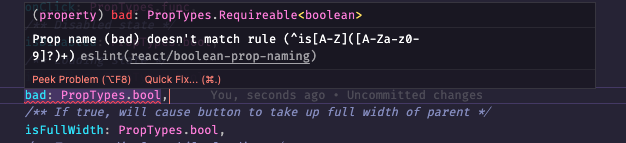
Once installed (an app restart may be necessary), you should see linting take place inline and this can also be confirmed by opening your terminal with ctrl + ~ and you should see the PROBLEMS tab display output (if there's an actual issue). You can test this by naming a prop wrong (see previous screen).
Example

Inline Example
Boolean prop type naming is enforced by eslint.
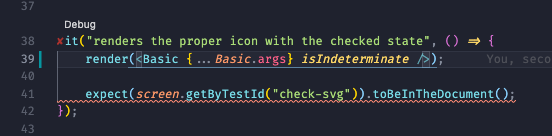
Also using the official Jest plugin will give you the ability to run your <component>.test.js
files inline while coding without having to do any extra effort. This will result in highlighting any failures on the fly.
Troubleshooting 🚨
I've got nothing going on (ESLINT / PRETTIER)#
Did you install the plugin for VS Code?
If you have any issues seeing linting support during your editor workflow, check the OUTPUT tab in the VS Coded Terminal as it will usually display any conflicts and issues that arise.

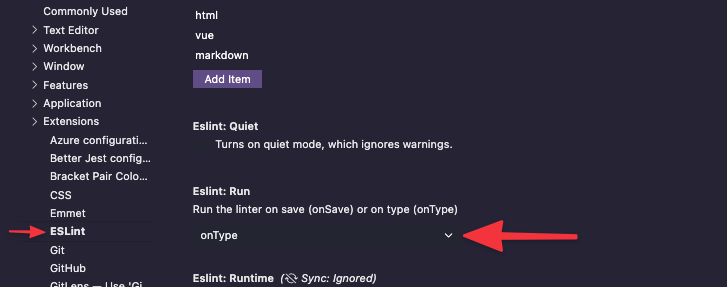
Is the installed (and enabled plugin) set to run onType or onSave?